
OneDrive can protect important files and make them available across several devices, but I do not always want every folder uploaded to the cloud. Large work projects, private documents, application files, and game folders can consume cloud storage or cause persistent synchronization errors.
When I need to understand how to stop OneDrive from syncing specific folders, I first decide whether I want to remove a cloud folder from my PC or keep a local folder from uploading. OneDrive handles these goals differently, so choosing the correct method helps me avoid losing access to important files.
What Should I Do Before Changing OneDrive Sync Settings?
Before changing a folder setting, I confirm where its files are stored. A blue cloud icon beside a file usually means it is online-only. A green check indicates that a local copy is available on the computer.
If I want to keep the folder locally, I right-click it and select “Always keep on this device.” I wait until OneDrive finishes downloading everything before moving or disabling the folder. I also copy irreplaceable files to another drive or backup location.
This precaution is particularly important for American households and businesses that use OneDrive with Microsoft 365. Deleting a file from an actively synchronized folder may remove it from the cloud and every connected device.
How Do I Hide Cloud Folders From My Windows PC?
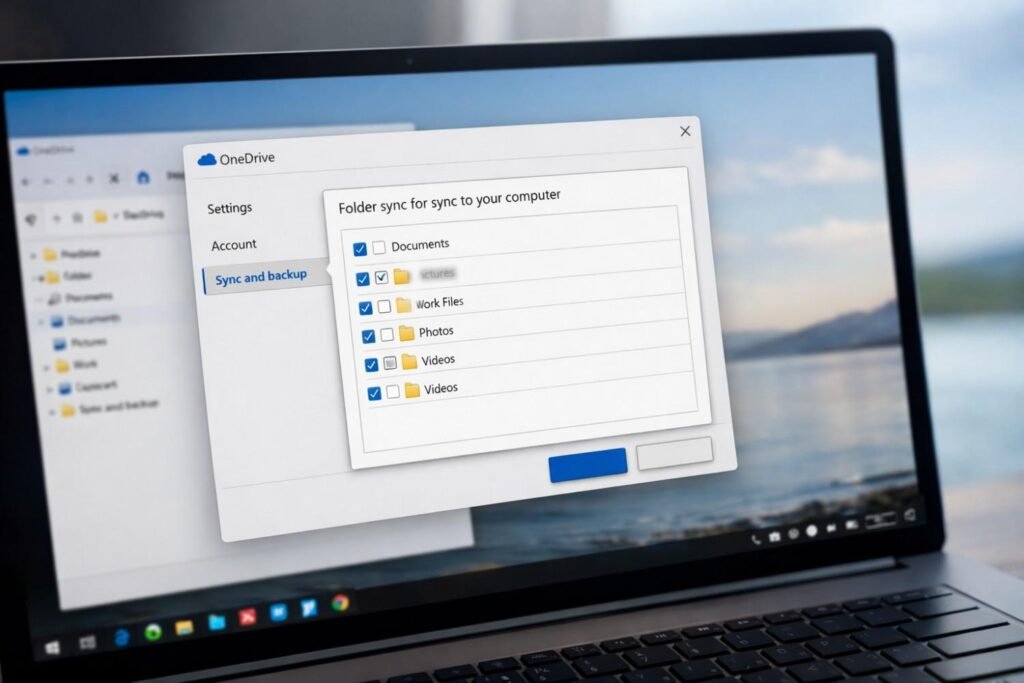
I use the “Choose folders” feature when a folder is already stored in OneDrive but I do not want it consuming space on a particular computer. This option keeps the cloud copy while removing the folder from that PC.
First, I select the OneDrive cloud icon in the Windows taskbar notification area. If the icon is hidden, I select the upward arrow near the clock. I then open the gear icon, select Settings, and choose Account from the left menu.
Next, I select “Choose folders,” clear the checkbox beside each unwanted folder, and select OK. OneDrive removes those folders from the computer, but they remain accessible through OneDrive on the web, its mobile app, and other synchronized devices.
The preference applies only to that computer and OneDrive account. If I use another Windows PC, I must adjust its folder selection separately.
How Do I Stop OneDrive From Backing Up Desktop, Documents, or Pictures?
Desktop, Documents, and Pictures are handled differently because OneDrive may protect them through its PC folder backup feature. If OneDrive does not allow me to clear one of these folders under “Choose folders,” I manage it through the backup controls.
How Do I Turn Off OneDrive PC Folder Backup?
I open the OneDrive cloud menu, select the gear icon, and navigate to Settings. Under “Sync and backup,” I select “Manage backup.” I then turn off the switch beside Desktop, Documents, or Pictures and confirm by selecting “Stop backup” or the confirmation option displayed by my version of OneDrive.
Stopping backup may not automatically return every file to its original Windows location. Some content could remain in the OneDrive folder or online. I check File Explorer and compare the local folder with the OneDrive version before deleting or reorganizing anything.
If files remain under a path containing “OneDrive,” I download them and copy them into the appropriate local Desktop, Documents, or Pictures folder. I open several files to verify that the transfer worked before removing duplicates.
How Can I Keep a Custom Folder Local Without Uploading It?
OneDrive does not provide a standard setting that ignores an ordinary subfolder while continuing to synchronize its parent. If I want a custom folder to remain on my computer only, I move it completely outside the OneDrive directory.
For example, I can create a folder under a nonsynchronized user location or another internal drive. I pause OneDrive, copy the folder to its new destination, verify its contents, and then resume synchronization. Copying before removing the original gives me a recovery option if the transfer is incomplete.
If an application saves files in that folder, I open the application’s preferences and change its save location. This method works well for games, video editors, accounting programs, development projects, and other software that generates large or frequently changing files.
Should I Use a Symbolic Link to Preserve the Original Folder Path?
Some instructions recommend moving the data outside OneDrive and creating a symbolic link inside the synchronized directory. Although Windows can create such links through an administrator Command Prompt, Microsoft does not officially support OneDrive synchronization through symbolic links or junction points.
A link may trigger backup errors or behave unpredictably after a software update. I therefore avoid presenting it as a dependable OneDrive exclusion method. If an application requires a fixed path, I consult its official documentation or support team before changing the file structure.
How Do I Stop a Folder From Syncing on a Mac?
On a Mac, I select the OneDrive cloud icon in the menu bar and open Preferences or Settings. I navigate to Account, choose “Choose Folders,” and clear each folder I do not want downloaded to that Mac.
The deselected content remains in the cloud but disappears from the local OneDrive directory. If I need a local-only copy, I download the folder first and copy it to a location outside OneDrive in Finder.
Menu names can vary slightly with the macOS and OneDrive versions, but the same principle applies: folder selection controls which cloud content appears locally, while moving a folder outside OneDrive prevents it from uploading.
Can I Pause OneDrive Without Changing My Folders?
When I only need a temporary break, I select the OneDrive cloud icon, open the gear menu, and choose “Pause syncing.” Available periods commonly include two, eight, and 24 hours.
Pausing stops uploads and downloads for the whole account on that device. It does not permanently exclude a particular folder. OneDrive automatically resumes after the selected period unless I extend the pause or quit the application.
This option can help when a large upload slows a video meeting, strains a home internet connection, or uses limited hotspot data.
Will Unsyncing a Folder Delete My Files?
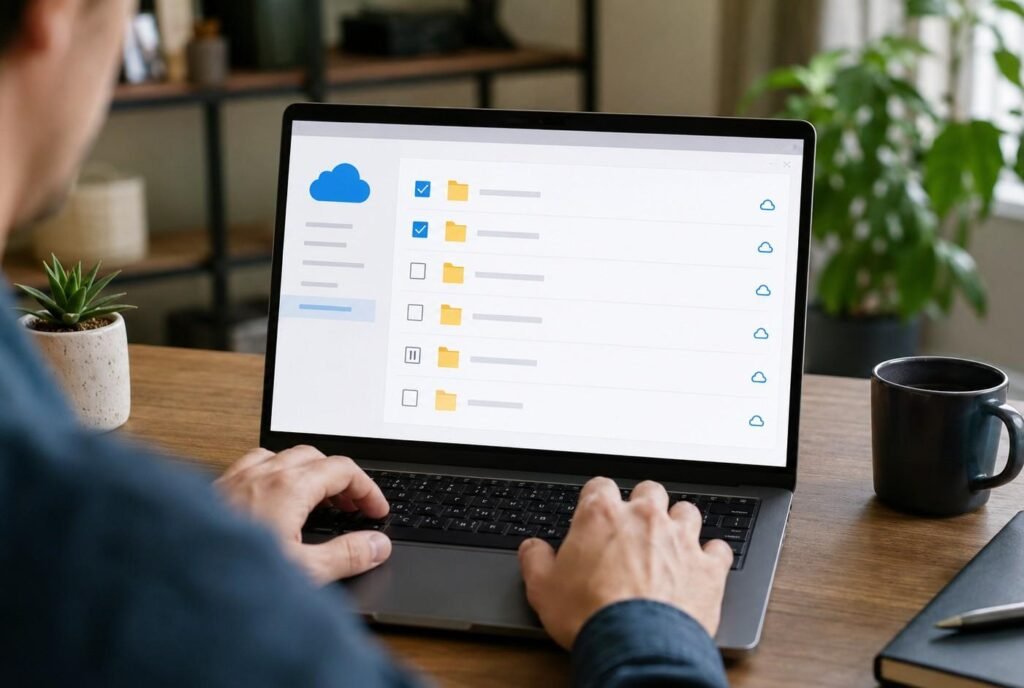
Using “Choose folders” removes an unchecked folder from that computer but preserves its online copy. By contrast, deleting a file from an actively synchronized directory may also delete it from OneDrive and other devices.
“Free up space” is another separate action. It removes the downloaded copy but retains an online-only placeholder. The item still belongs to OneDrive and downloads again when opened. This same verify-before-removing principle is useful when learning how to remove bank account from Venmo safely, since checking the item’s status first can prevent unintended consequences.
I always confirm the folder’s location and synchronization status before selecting Delete, Move, Stop backup, or Free up space. These commands produce different results.
Frequently Asked Questions (FAQs)
1. How to Stop OneDrive From Syncing Specific Folders Without Losing Files?
Use “Choose folders” when you want a folder to remain online but disappear from one computer. If you want it to remain local only, download it completely and copy it outside the OneDrive directory before removing the synchronized version.
2. Why Can’t I Uncheck My Desktop Folder in OneDrive?
Desktop may be protected through PC folder backup. Open OneDrive Settings, select “Sync and backup,” and use “Manage backup” instead of the regular folder-selection window.
3. Can OneDrive Ignore One Subfolder Inside a Synced Folder?
OneDrive does not offer a simple consumer setting for excluding an ordinary subfolder while leaving it inside a synchronized parent folder. Moving it outside OneDrive is the safest supported approach.
4. Can I Recover a Folder After Removing It From My PC?
Yes. If you unchecked it through “Choose folders,” it should remain available through OneDrive on the web. You can select it again later to download it back to the computer.
Take Control of OneDrive Without Risking Your Files
I find OneDrive much easier to manage once I separate cloud-folder selection, PC folder backup, and local-only storage. “Choose folders” controls which cloud folders appear on a device, while “Manage backup” controls Desktop, Documents, and Pictures. Moving custom content outside OneDrive prevents future uploads.
Before making changes, I ensure that essential content is available locally and backed up elsewhere. That simple check allows me to save disk space, reduce unwanted uploads, and organize my files without unnecessary risk.