Most people think the only way to enjoy a better smartphone experience is by upgrading to the latest model. But after using Android for years, one thing becomes obvious—sometimes a few thoughtful changes can make an old phone feel surprisingly fresh. You don’t always need new hardware when your software has plenty of untapped potential.
That’s exactly why Android continues to stand out. It gives you the freedom to personalize almost every part of your device, from the home screen and app icons to gestures and widgets. With the right Android customization tips, you can improve both the look and performance of your phone while making everyday tasks faster and more enjoyable.
Why Android Still Leads in Personalization?
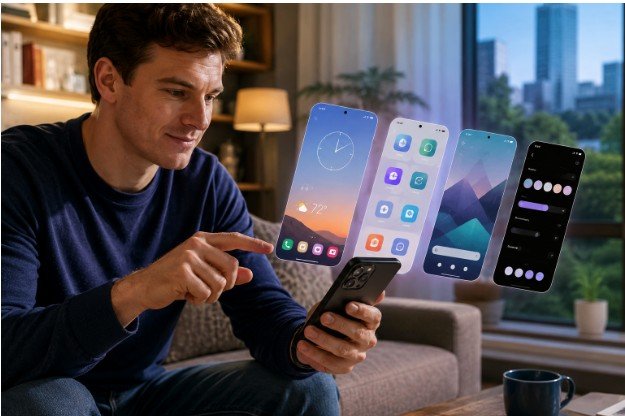
Android has always been known for flexibility, and every new version continues to build on that reputation. Whether you prefer a clean, minimal interface or a colorful setup filled with widgets, the operating system lets you create a phone that fits your habits instead of forcing you into a single design.
Customization also goes beyond appearance. Organizing apps, simplifying navigation, and reducing distractions can make your phone feel more responsive without changing the hardware.
Speed Things Up with Developer Options
One of the quickest ways to make your phone feel faster is by adjusting the system animation speed. Android includes animation effects whenever you open apps, switch screens, or navigate menus. While these effects look smooth, they also make your device appear slightly slower.
To change this, enable Developer Options by opening Settings > About Phone and tapping the Build Number seven times. Once Developer Options become available, locate Window Animation Scale, Transition Animation Scale, and Animator Duration Scale. Reducing each setting from 1x to 0.5x makes menus and apps respond much quicker without affecting stability.
This simple adjustment is especially noticeable on older devices that struggle with longer animation times.
Refresh Your Home Screen with a New Launcher
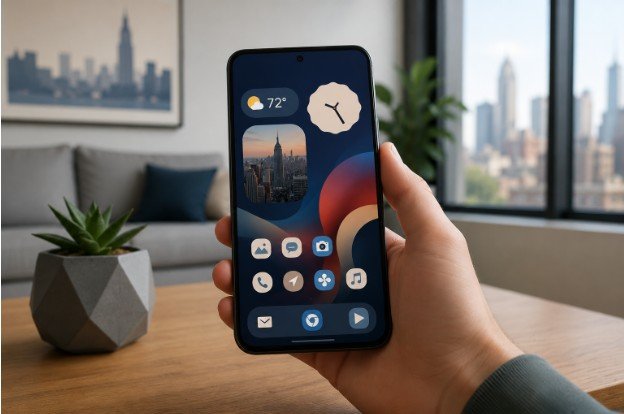
If you’ve been looking at the same home screen for years, replacing the default launcher can completely transform your phone.
Launchers like Nova Launcher, Niagara Launcher, and Microsoft Launcher allow you to redesign your home screen, customize gestures, resize icon grids, hide app labels, and organize widgets exactly the way you prefer.
Minimal launchers reduce visual clutter by displaying apps as clean text lists, while feature-rich launchers offer nearly endless customization. Whether you prioritize productivity or aesthetics, a launcher gives your phone an entirely different personality.
Let Material You Do the Heavy Lifting
Modern Android versions include Material You, Google’s dynamic theming system that automatically matches system colors to your wallpaper.
Instead of manually choosing accent colors, Android generates a coordinated color palette that appears throughout Quick Settings, menus, notifications, and supported apps. The result feels polished because every part of the interface follows the same design language.
Pair this with high-quality wallpapers or rotating background apps to keep your device looking fresh without constantly changing themes yourself.
Organize Your Apps for Everyday Convenience
Customization isn’t only about appearance. It’s also about reducing the number of taps needed to complete everyday tasks.
Consider grouping similar apps into folders, placing frequently used apps near your thumb’s natural reach, and removing shortcuts you rarely use. If you mainly browse social platforms or news websites, replacing large apps with browser shortcuts can free storage space while reducing background activity.
A cleaner home screen also makes it easier to find what you need without endless scrolling.
Make Quick Settings Work for You
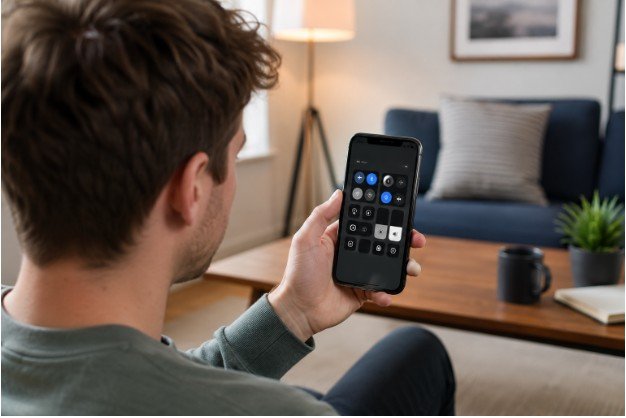
Quick Settings is one of Android’s most useful features, yet many users never customize it.
Open the notification shade, tap the edit button, and move your most-used controls—such as Wi-Fi, Bluetooth, Focus Mode, Dark Theme, Flashlight, or Nearby Share—to the first page. Removing toggles you never use creates a cleaner interface while helping you access important settings with fewer swipes.
These small improvements save time dozens of times throughout the day.
Use Widgets That Add Value
Widgets have become far more useful than they were a few years ago. Instead of filling your screen with oversized clocks, choose widgets that help you stay organized.
Calendar widgets, weather forecasts, task lists, music controls, battery indicators, and note-taking apps provide useful information without opening multiple applications.
The best home screens balance functionality with simplicity. Too many widgets can make your phone feel cluttered rather than productive.
Don’t Forget About Accessibility Features
Many accessibility tools are useful even if you don’t have accessibility needs.
Features like larger text, one-handed mode, voice typing, magnification shortcuts, and gesture navigation improve comfort during daily use. Android also includes digital wellbeing tools that help monitor screen time, manage notifications, and reduce distractions.
If you enjoy exploring new features, keeping up with Android AI updates can also introduce smarter ways to personalize your device through AI-powered suggestions, adaptive tools, and intelligent automation.
Avoid These Common Customization Mistakes
While Android offers nearly endless flexibility, too much customization can have the opposite effect.
- Installing multiple launcher plugins that slow down performance.
- Using battery-intensive live wallpapers on older devices.
- Filling every home screen with widgets and shortcuts.
- Downloading icon packs or themes from untrusted sources.
- Ignoring regular app cleanup, resulting in unnecessary clutter.
A clean setup almost always performs better than one overloaded with visual effects.
FAQs: Android Customization Tips That Make Your Phone Feel Brand New
Can Android customization slow down my phone?
Not usually. Most built-in customization features have little impact on performance. However, using too many widgets, live wallpapers, or poorly optimized launchers may consume extra battery and memory.
What’s the safest customization for beginners?
Changing wallpapers, using Material You, organizing Quick Settings, and installing a trusted launcher are simple, low-risk ways to personalize your phone.
Do I need to root my Android device?
No. Nearly all popular customization options are available without rooting, making them easier to use while keeping your device secure and eligible for software updates.
Which customization makes the biggest difference?
Reducing animation scales, cleaning your home screen, reorganizing apps, and choosing a launcher that matches your workflow often provide the most noticeable improvements with minimal effort.
Small Changes That Make Your Phone Feel New Again
The best Android customization tips aren’t about making your phone look flashy—they’re about making it work better for you. A faster interface, cleaner layout, smarter widgets, and thoughtful personalization can completely change how your device feels throughout the day. Most of these improvements take only a few minutes, yet you’ll notice the difference every time you unlock your screen.
Sometimes, giving your Android phone a fresh start is easier than replacing it.