Most of us don’t think twice before tapping Install on a new app. Whether it’s a photo editor, a budgeting tool, or the latest social media platform, the excitement of trying something new often outweighs the few seconds it takes to review permissions. Unfortunately, that’s exactly how many apps end up with access to far more information than they actually need.
The good news is that Android has become much better at protecting user privacy. Recent versions include built-in tools that let you control app permissions, limit tracking, and keep sensitive information private without downloading extra security apps. Spending just a few minutes reviewing these settings before installing another app can significantly reduce unnecessary data sharing while giving you more control over your device.
Why Android Privacy Deserves More Attention?
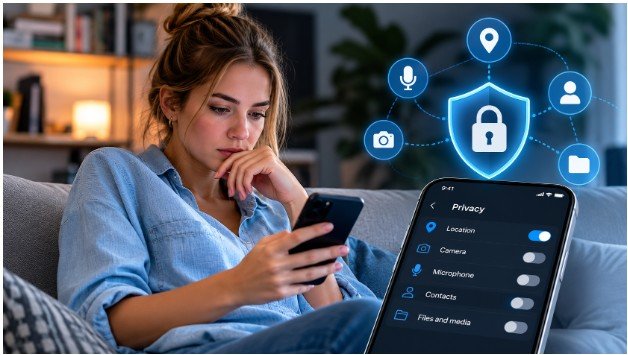
Apps collect data for different reasons. Navigation apps need your location, messaging apps require contacts, and camera apps obviously need camera access. Problems begin when an app requests permissions that don’t match its purpose. A flashlight app, for example, shouldn’t need access to your microphone or contacts.
Android has responded by adding stronger privacy controls through features like Permission Manager, Privacy Dashboard, auto-reset permissions, and Private Space. These tools help users decide exactly what information apps can access instead of granting unrestricted permissions during installation.
Review App Permissions Before Installing Anything
Before adding another app, take a few minutes to check what your existing apps can already access.
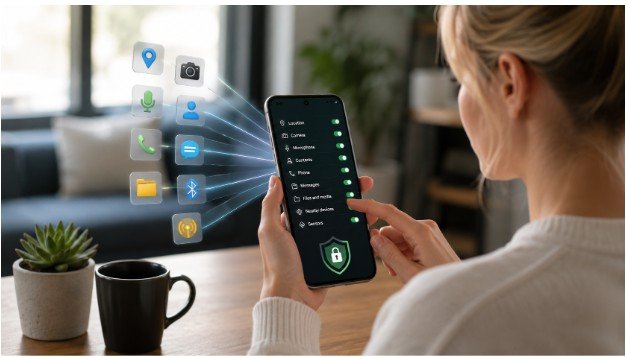
Open Settings > Apps > Permission Manager and review categories like Camera, Microphone, Location, Contacts, and Files. You’ll often discover apps that still have permissions they no longer need.
Instead of choosing Allow all the time, switch sensitive permissions to While using the app or Ask every time whenever possible. This simple adjustment prevents apps from accessing personal information while running in the background.
Making permission reviews a monthly habit is one of the easiest ways to improve Android security without changing how you use your phone.
Limit Location Tracking
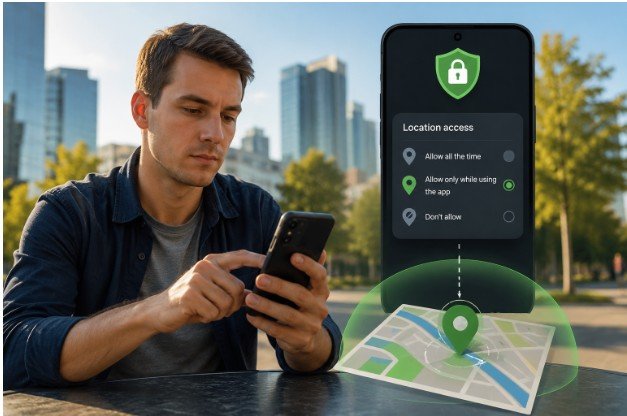
Location data is one of the most valuable types of information apps collect. While navigation and ride-sharing apps genuinely need precise GPS access, many others only require an approximate location—or none at all.
Visit Settings > Location > App Permissions and review every app individually. Disable Precise Location whenever it isn’t necessary and choose While using the app instead of permanent access.
Reducing unnecessary location tracking not only improves privacy but can also help preserve battery life throughout the day.
Disable Personalized Ad Tracking
Advertisers create profiles based on how you use different apps. While Android doesn’t eliminate advertising completely, it allows you to reduce personalized tracking.
Resetting your Advertising ID and opting out of ad personalization prevents companies from building long-term profiles tied to your device. Although you’ll still see advertisements, they’ll rely less on your personal activity and browsing behavior.
This setting is especially useful if you’ve been using the same phone for several years and want a fresh privacy start.
Keep Unknown App Installations Disabled
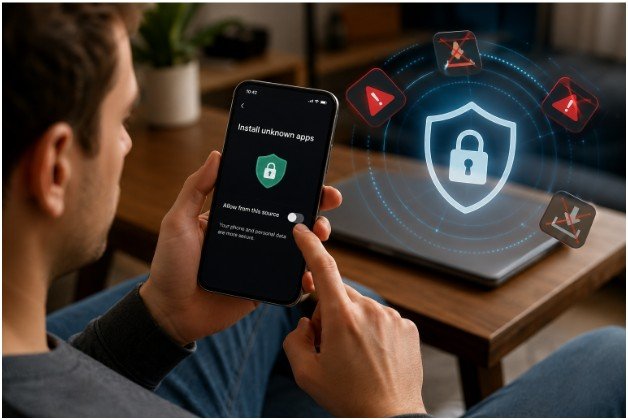
One overlooked privacy setting involves installing apps from outside the Google Play Store.
Android lets certain apps, including browsers and file managers, install applications from unknown sources. Unless you regularly sideload trusted software, this permission should remain disabled.
Go to Settings > Apps > Special Access > Install Unknown Apps and make sure unnecessary apps are set to Not Allowed. This reduces the risk of malicious software reaching your device through unofficial downloads.
Use Privacy Dashboard to Spot Unusual Activity
Privacy Dashboard has become one of Android’s most useful security tools because it shows exactly which apps recently accessed sensitive permissions. Instead of guessing whether an app is using your camera or microphone, you can see a clear history of its activity.
If something looks suspicious, you can immediately revoke the permission or uninstall the app. Reviewing this dashboard every few weeks makes it easier to catch unnecessary data access before it becomes a bigger concern.
Check Gboard and Google Play Privacy Settings
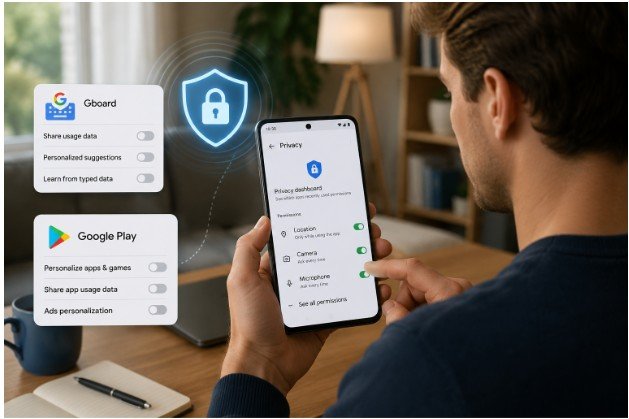
If you use Gboard, it’s worth reviewing its privacy options. The keyboard can share usage statistics and personalization data to improve suggestions, but not everyone is comfortable sending that information.
Likewise, the Google Play Store stores your search history and app activity. Clearing that history occasionally helps reduce the amount of information linked to your account. These settings don’t dramatically change your phone’s experience, but they do give you greater control over what gets shared.
Create a Private Space for Sensitive Apps
Android 15 introduced Private Space, one of the biggest privacy improvements in recent years. It lets you place banking apps, password managers, work tools, or secure messaging apps inside a separate, locked area protected by a PIN or fingerprint.
Apps stored there remain hidden from the main app drawer, recent apps, and notifications until you unlock the space. If your device supports this feature, it’s an excellent way to keep sensitive information separate from everyday apps.
Keep in mind that menu names may vary slightly depending on whether you’re using a Pixel, Samsung Galaxy, OnePlus, Motorola, or another Android phone, but the privacy features are generally available across modern devices.
If you’re also interested in making your phone more personal while keeping it secure, exploring Android customization tips alongside these privacy settings can help you strike the right balance between convenience and protection.
FAQs: Android Privacy Settings Everyone Should Change Before Installing Another App
Which Android privacy setting should I change first?
Start by reviewing app permissions. Remove access to your camera, microphone, contacts, and location from apps that don’t genuinely need them. It’s one of the quickest ways to improve privacy.
Should I turn off Precise Location for every app?
No. Keep Precise Location enabled only for apps that require accurate navigation, such as maps or ride-sharing services. Most other apps work perfectly well with approximate location or no location access at all.
Is Private Space available on every Android phone?
Private Space is available on Android 15 and newer supported devices. If your phone doesn’t support it, keeping sensitive apps protected with strong authentication is still a smart alternative.
How often should I review Android privacy settings?
Checking your permissions every month or after installing several new apps is a good habit. Regular reviews help ensure unused apps don’t continue accessing personal information unnecessarily.
A Few Minutes Today Can Save You Bigger Problems Later
Phone privacy isn’t about hiding everything—it’s about deciding what information you’re comfortable sharing. Android continues to add smarter security features, but they only work when users take advantage of them. Reviewing permissions, limiting tracking, and using built-in privacy tools can dramatically reduce unnecessary data collection without affecting your everyday experience.
Before you install your next app, spend a few minutes checking these settings. It’s one of the easiest habits you can build to keep your Android device more secure for the long run.