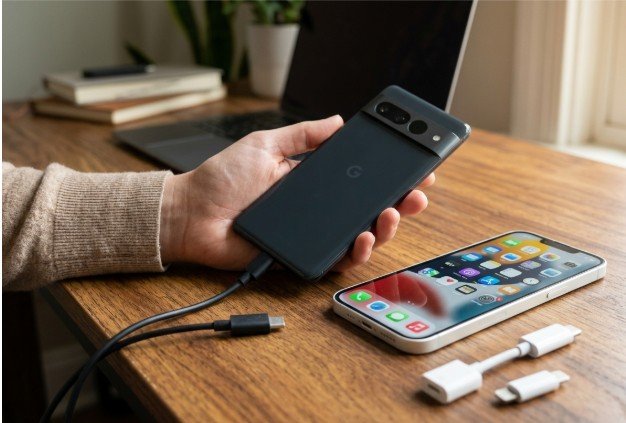
Finishing your new iPhone setup before moving information from your old phone can feel like a costly mistake. Fortunately, it does not mean your photos, contacts, messages, and documents are trapped on Android.
When I need to understand how to transfer data from Android to iPhone after setup, I choose between two practical routes: erase the iPhone and use Apple’s official migration process, or preserve its current content and transfer individual data categories manually.
The right option depends on how much information you have already added to the iPhone and what you need to move. A reset provides a more complete migration, while manual syncing protects the iPhone’s existing setup.
Can You Transfer Android Data to an iPhone That Is Already Set Up?
Yes, you can transfer Android data to an already configured iPhone. However, Apple’s Move to iOS process generally appears only during initial setup. If you have passed the Transfer Your Apps & Data screen, you normally must erase the iPhone to use that automated method.
If resetting is not suitable, you can manually move contacts, calendars, email, photos, videos, music, PDFs, and other documents. Text messages, call history, WhatsApp conversations, device settings, and app-specific data are more difficult to migrate after setup.
Before choosing either approach, confirm that both phones have sufficient battery power, a stable Wi-Fi connection, and enough available storage. I also recommend backing up both devices and keeping the Android phone until every important item has been verified.
How Do You Use Move to iOS After Completing iPhone Setup?
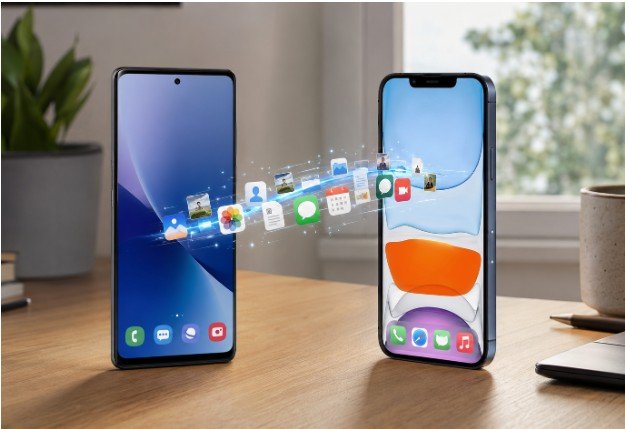
Resetting and using Move to iOS is generally the cleanest choice when your new iPhone contains little important data. This official method can transfer supported contacts, calendars, camera photos, videos, message history, call history, mail accounts, files, accessibility settings, and WhatsApp content. The available categories can vary by device and software version.
Back Up Your Current iPhone Before Erasing It
A factory reset removes the iPhone’s locally stored files, apps, settings, accounts, and media. Save new photos and documents to iCloud or a computer before continuing. You should also record any information that cannot easily be restored, including authentication app details and account recovery codes.
Remember that an iPhone backup and Android migration do not always merge automatically. Protect the current content separately and confirm that it can be recovered before erasing the phone.
Reset the iPhone and Start the Official Transfer
Open Settings on the iPhone, select General, choose Transfer or Reset iPhone, and tap Erase All Content and Settings. Confirm the action and allow the device to return to its initial setup screen.
Install Apple’s Move to iOS app from the Google Play Store on the Android phone. Begin setting up the iPhone and continue until the Transfer Your Apps & Data screen appears. Select From Android.
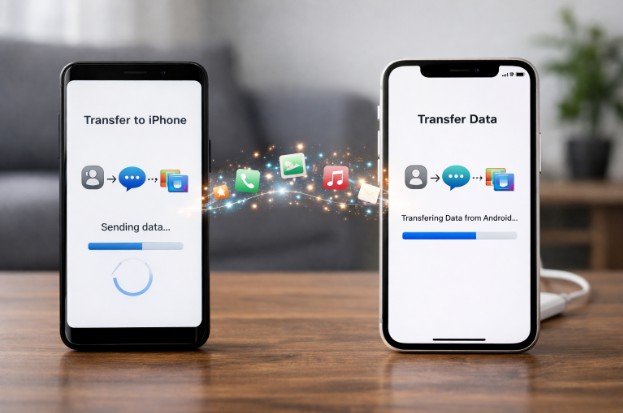
The iPhone will display a six- or ten-digit code. Enter that code in the Android app, connect the devices as instructed, and select the content you want to migrate. Keep both phones connected to power, close together, and untouched until the iPhone’s loading bar finishes. Even if Android reports completion first, wait for the iPhone to confirm that the process has ended.
How Can You Transfer Android Data Without Resetting the iPhone?
Manual transfer is the safer option when your iPhone already contains valuable messages, photographs, downloads, or customized settings. It avoids erasing the device, but you will need to handle each content category separately.
How Do You Sync Contacts, Calendars, and Email?
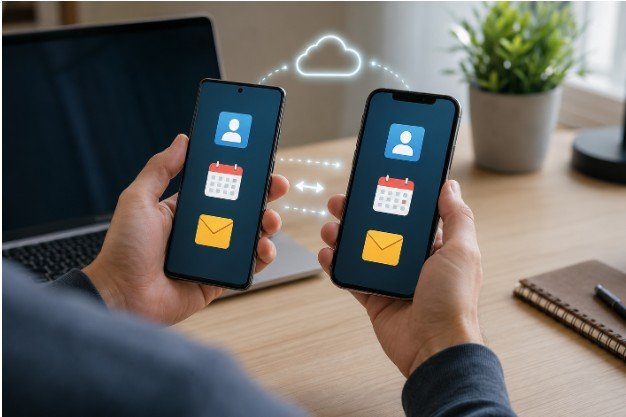
Most Android phones synchronize contacts, calendars, and email with a Google Account. On the iPhone, open Settings, find the account settings for Mail, Contacts, or Calendar, and add the same Google Account. Sign in with your Gmail credentials and enable the content you want to sync.
Your information should begin appearing in Apple’s corresponding apps, although a large account may take several minutes to synchronize. If some contacts exist only on the Android device, export them as a VCF (The Variant Call Format) file. Upload or email the file, open it on the iPhone, and import the contacts. Review the address book afterward for duplicates.
How Do You Move Photos and Videos Without a Computer?
Google Photos offers one of the easiest wireless methods. On Android, open Google Photos and confirm that backup is enabled. Wait until the app reports that the media library has finished uploading.
Download Google Photos from the iOS App Store, sign in with the same Google Account, and view your library. If you want selected pictures stored locally in Apple Photos, download them to the iPhone. Simply viewing cloud-based images does not always make them available offline.
For a large media collection, connect Android to a computer and copy the photographs and videos into a desktop folder. You can then use Finder on a Mac, the Apple Devices app on a Windows PC, or iCloud to make compatible media available on the iPhone.
How Do You Move Documents, Downloads, and Audio Files?
For PDFs, audio recordings, spreadsheets, and downloaded files, upload the content from Android to Google Drive, Microsoft OneDrive, or Dropbox. Install the corresponding service on the iPhone and open the files through its app or Apple’s Files app. Download essential documents if you need offline access.
If your music comes from Spotify, Amazon Music, YouTube Music, or another streaming platform, signing in to the same account may restore your playlists and saved preferences. Locally stored tracks may require a computer or compatible cloud-storage service.
Can You Transfer WhatsApp Chats After Setup?
WhatsApp backups created on Android and iPhone use different cloud systems, so an Android backup cannot simply be restored from iCloud. The official Android-to-iPhone chat migration generally operates through the Move to iOS process during device setup.
If preserving the complete WhatsApp history matters, resetting the iPhone and using the official migration route is usually the most dependable approach. Some third-party desktop programs, including Wondershare MobileTrans, advertise chat transfers after setup, but they generally require a paid license.
Before allowing any third-party tool to access private messages, review its current device compatibility, privacy policy, price, data limitations, and independent customer feedback. Create backups before attempting any unsupported migration. Before installing another app, it’s also worth reviewing your Android privacy settings.
Check app permissions for location, camera, microphone, contacts, and storage, disable unnecessary background access, and restrict permissions to only what each app genuinely needs. These simple adjustments help protect your personal data and reduce unnecessary privacy risks.
Why Does the Android-to-iPhone Transfer Keep Failing?
Migration may fail when either phone loses power, changes networks, runs out of storage, or interrupts the transfer app. VPN connections, battery-saving features, incoming calls, and automatic switching to cellular data can also break the temporary connection.
Plug both phones into power, place them close together, and avoid using either device during the transfer. If the connection repeatedly drops, disable the Android phone’s cellular-data switching and pause unnecessary background activity. Check iPhone storage under Settings and General before trying again.
An incomplete migration may leave partial data on the iPhone. If you are using the reset method, erase the device before making another clean attempt.
What Should You Check Before Erasing the Android Phone?
Do not trade in, recycle, or factory-reset the old phone immediately. Compare important contacts, open recent and older photos, inspect calendar appointments, test documents, and verify that your email accounts work.
Confirm that your US carrier service, physical SIM or eSIM, phone number, calls, texts, and voicemail function correctly. Re-register banking apps, workplace accounts, password managers, and two-factor authentication tools. Save recovery codes somewhere secure before deleting anything from Android.
Frequently Asked Questions (FAQs)
1. What is the safest way to transfer data from Android to iPhone after setup?
If the iPhone contains little valuable information, back it up, erase it, and use Move to iOS for the most complete official migration. If the iPhone already contains important content, manually sync individual data categories to avoid deleting its current setup.
2. Will a manual transfer overwrite my existing iPhone content?
Google synchronization and cloud-storage methods generally add accessible content without erasing the device. However, duplicate contacts, photos, or calendar events may appear and require cleanup.
3. Can Android apps transfer directly to an iPhone?
Android apps cannot move directly because iOS uses different versions. Download available equivalents from the App Store, sign in again, and confirm whether previous subscriptions or purchases apply across platforms.
4. Can text messages move to an iPhone without a reset?
iOS does not provide a standard post-setup tool for importing an Android SMS and MMS database into Messages. The official initial-setup migration is usually the safest route for supported message history.
Final Thoughts
I choose the reset method when the iPhone is nearly empty and a complete migration matters more than preserving its current setup. If I have already created valuable content, I keep the device configured and manually transfer each category.
Whichever method you select, never erase the Android phone until you have checked your media, contacts, files, conversations, carrier service, and account access. Careful preparation and final verification can prevent missing memories, inaccessible accounts, and avoidable data loss.