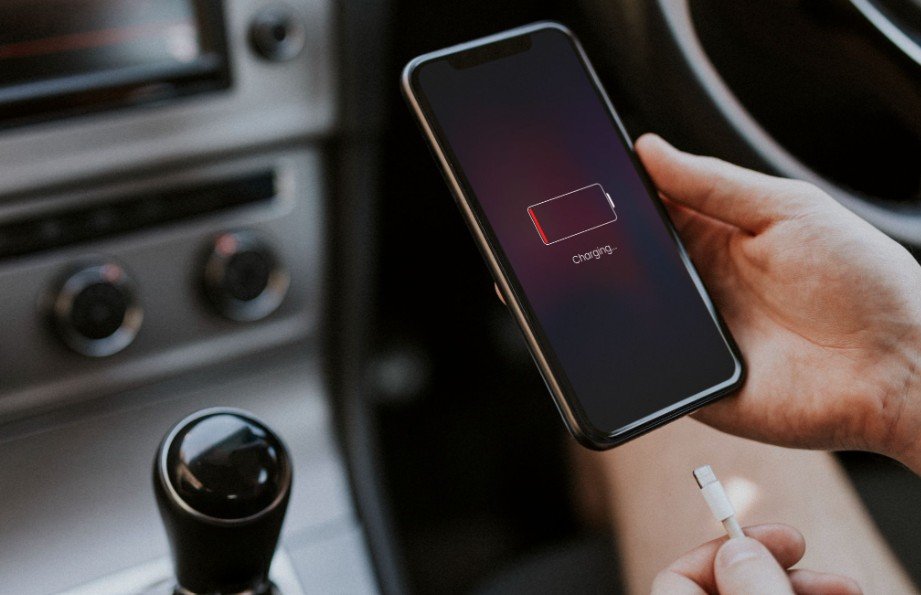
I know how concerning it feels to install a new iOS version and suddenly watch the battery percentage fall much faster than usual. If you are asking, “why is my iPhone battery draining so fast after iOS update,” the most likely explanation is temporary post-update background activity rather than permanent battery damage.
After an update, iOS reorganizes system data, rebuilds the Spotlight search index, syncs information with iCloud, updates apps, optimizes photos, and runs object-detection processes on images. These tasks use the processor, storage, and network connection, which can increase power consumption and make the device feel warmer.
Is iPhone Battery Drain Normal After an iOS Update?
Temporary battery drain is common immediately after a major software update. Even though the installation screen has disappeared, your iPhone may continue completing setup and optimization tasks behind the scenes.
Battery performance usually begins returning to normal within a few days. The exact time depends on the iPhone model, available storage, internet speed, number of installed apps, and size of the photo library. Instead of treating 72 hours as a strict deadline, I recommend monitoring the phone for several days.
Connect the device to reliable Wi-Fi and leave it plugged into power overnight. This allows indexing, photo analysis, app updates, and iCloud syncing to finish without relying entirely on battery power.
How Do I Check for Ongoing Post-Update Activity?
Open Settings and tap Battery. Look above the Daily Usage chart for battery suggestions or Insights. If you see “Ongoing iOS Update,” the phone is still completing update-related work.
You should also review the Daily Usage chart and open View All Battery Usage when that option is available. Compare current battery consumption with your activity during previous days. The report can identify apps, system services, notifications, weak cellular coverage, and other activities that consume power.
Pay particular attention to Screen On and Background Activity. Screen On means an app used energy while it was visible. Background Activity means the app continued syncing, tracking location, downloading content, or performing another task when you were not actively using it.
How Can Outdated Apps Cause Severe Battery Drain?
Third-party apps may not work efficiently with a newly released iOS version. An outdated app can become trapped in a background loop, repeatedly attempt to sync, crash and relaunch, or request location data unnecessarily.
Compatibility problems are not limited to Apple devices. Reviewing the most useful Android AI updates you’ll actually notice can also help mobile users understand how new operating-system features affect everyday performance, app behavior, and battery use.
Open the App Store and tap your profile icon in the upper-right corner. Scroll to the available updates and select Update All, or update the apps showing unusually high battery consumption first.
Check Settings > General > Software Update as well. Apple may release a smaller follow-up version to address bugs found after a major rollout. Keeping both iOS and installed apps current can resolve compatibility-related battery problems.
Which iPhone Settings Should I Change to Reduce Battery Drain?
The best results usually come from adjusting only the settings linked to excessive activity instead of disabling every feature at once. This same approach applies when exploring AI features on Android you probably haven’t tried yet, since newer mobile tools can also affect background processing, notifications, and daily power use.
Should I Turn Off Background App Refresh?
Open Settings > General > Background App Refresh. Rather than turning the feature off completely, restrict it for nonessential apps or programs showing excessive background activity.
Selective changes preserve useful functions in messaging, navigation, cloud storage, and other important apps. Completely disabling the feature may delay content updates without fixing the actual source of the drain.
How Should I Adjust Location Services?
Go to Settings > Privacy & Security > Location Services. Review each app and change nonessential permissions to “While Using the App” or “Never.”
Avoid removing access from navigation, emergency, weather, or device-recovery services without understanding the consequences. The goal is to prevent unnecessary tracking, not disable important safety features.
Can a Weak Cellular Signal Drain My Battery?
An iPhone consumes extra power when it repeatedly searches for a cellular tower or switches between network types. Connect to Wi-Fi when possible, especially inside buildings or in rural areas with poor reception.
On supported models, open Settings > Cellular > Cellular Data Options > Voice & Data and choose 5G Auto. This setting allows the phone to use LTE when continuous 5G performance is unnecessary. Temporarily selecting LTE (Long Term Evolution) can also help determine whether unstable 5G coverage contributes to the problem.
Do Brightness and Always-On Display Affect Battery Life?
High screen brightness, a long Auto-Lock interval, and Always-On Display can reduce daily battery life. Lower excessive brightness, enable Auto-Brightness, and select a shorter Auto-Lock time under Settings > Display & Brightness.
If your model supports Always-On Display, turn it off temporarily and compare battery performance. On compatible OLED (Organic Light Emitting Diode) screens, Dark Mode may also reduce power consumption in apps that display genuinely dark backgrounds.
Should I Restart or Force Restart My iPhone?
Start with a regular restart when the device responds normally. Turn it off, wait approximately 30 seconds, and power it back on. This can clear temporary software issues without interrupting the phone more forcefully.
Use a force restart when the iPhone freezes, becomes unresponsive, or cannot restart normally. On supported newer models, quickly press and release Volume Up, quickly press and release Volume Down, and hold the Side button until the Apple logo appears. Older models use different button combinations, so verify the correct method for your device.
A force restart may stop a stuck process, but it should not replace battery diagnosis or the time needed for legitimate indexing to finish.
When Should I Use Low Power Mode?
Low Power Mode temporarily limits background app refresh, automatic downloads, email fetching, visual effects, and certain display functions. Depending on your model, find it under Settings > Battery or Settings > Battery > Power Mode.
Compatible newer iPhones may also offer Adaptive Power, which makes small performance adjustments when the system predicts unusually heavy power use. These features extend runtime, but they do not repair an incompatible app or degraded battery.
Did the iOS Update Damage My Battery Health?
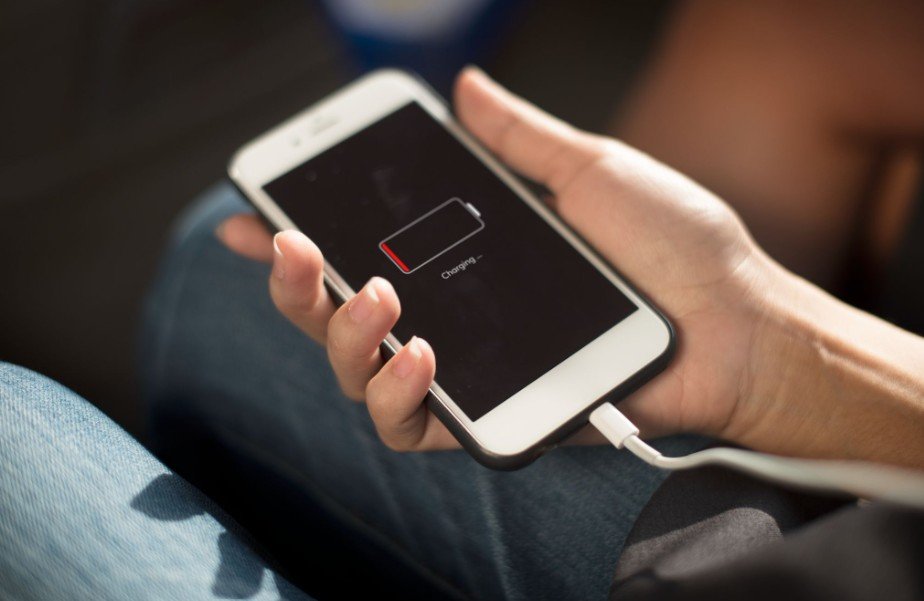
Software updates do not normally cause immediate physical battery damage. However, demanding background activity can expose an older battery that already struggles to hold a charge.
Open Settings > Battery > Battery Health or Battery Health & Charging. Maximum Capacity estimates how much charge the battery holds compared with when it was new. A capacity below 80% indicates substantial degradation and makes replacement worth considering, especially when iOS displays a service recommendation or the phone experiences short runtime and unexpected shutdowns.
Seek professional help if the phone remains hot during light use, loses significant power while idle, stops charging, repeatedly dims its screen, or displays a temperature warning. Stop using the device immediately if the battery swells or pushes against the screen or case.
Frequently Asked Questions
1. Why Is My iPhone Battery Draining So Fast After iOS Update Even at 100% Battery Health?
Maximum Capacity measures the battery’s ability to hold charge; it does not show which apps or system processes currently consume power. Check Battery Usage for ongoing update activity, weak signal, location tracking, notifications, and excessive background use.
2. Why Is My iPhone Losing Battery Overnight After Updating?
The phone may be indexing files, processing photos, syncing iCloud content, or updating apps. Leave it connected to Wi-Fi and power overnight. Investigate individual apps if the problem continues beyond several days.
3. Why Is My iPhone Hot After Installing an Update?
Temporary warmth can occur during indexing and system optimization. Persistent heat while the phone is idle, charging interruptions, or temperature warnings may indicate a software or hardware problem that requires support.
4. Should I Replace My Battery When Maximum Capacity Is Below 80%?
A reading below 80% indicates significant battery aging. Consider replacement when it appears with short runtime, unexpected shutdowns, reduced performance, or a service recommendation.
Final Thoughts
When I encounter post-update battery drain, I give the system time to finish its work before disabling useful features. I connect the phone to power and Wi-Fi, update every app, inspect Battery Usage, and make targeted changes based on the evidence.
If you continue wondering why my iPhone battery is draining so fast after an iOS update, check background activity, network strength, location permissions, and battery health in that order. Persistent overheating, shutdowns, swelling, or severe idle drain deserves professional inspection rather than repeated settings changes.